> ## Documentation Index
> Fetch the complete documentation index at: https://docs.finetunedb.com/llms.txt
> Use this file to discover all available pages before exploring further.
# Collaborate on Datasets
> Get together with domain experts to create and collaborate on fine-tuning datasets using the FinetuneDB Dataset Manager.
## LearnTech's Use Case
LearnTech specializes in AI-driven personalized educational content. By collaborating with domain experts, they create datasets to fine-tune their LLMs for personalized learning experiences for different learning styles and levels. This guide follows LearnTech as they work together with domain experts to build and manage these datasets using the FinetuneDB Dataset Manager.
## Step 1: Initiate Dataset Creation
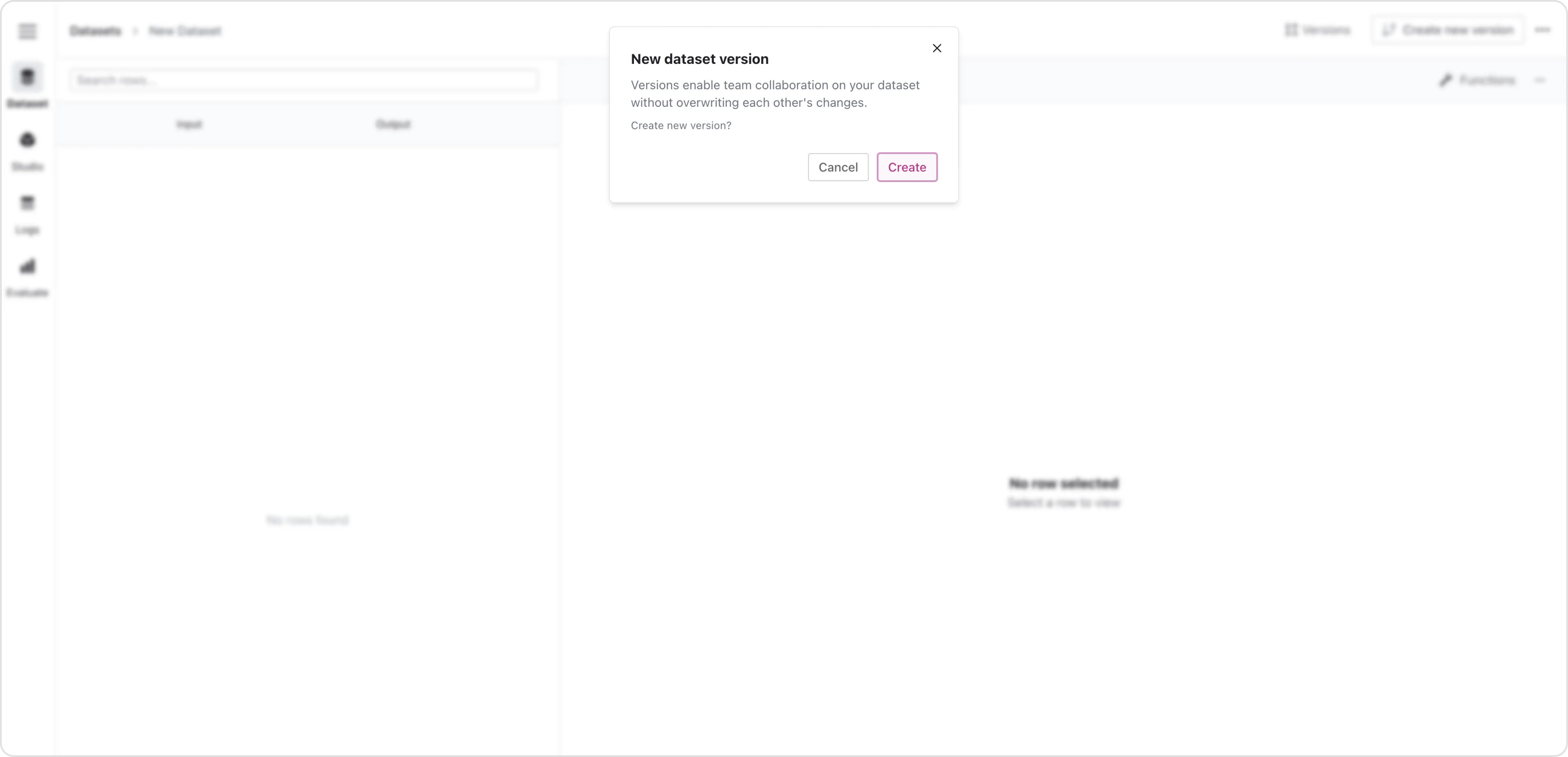
LearnTech starts by creating a new dataset in the FinetuneDB platform. They navigate to the Dataset Manager, click on “Create Dataset,” and provide a dataset name. They then invite collaborators, including teachers and curriculum developers, to their workspace and assign roles for access management. They create their first dataset version, and upload a small existing dataset in JSONL format containing initial examples to start with.
 ## Step 2: Collaborate and Manage Versions
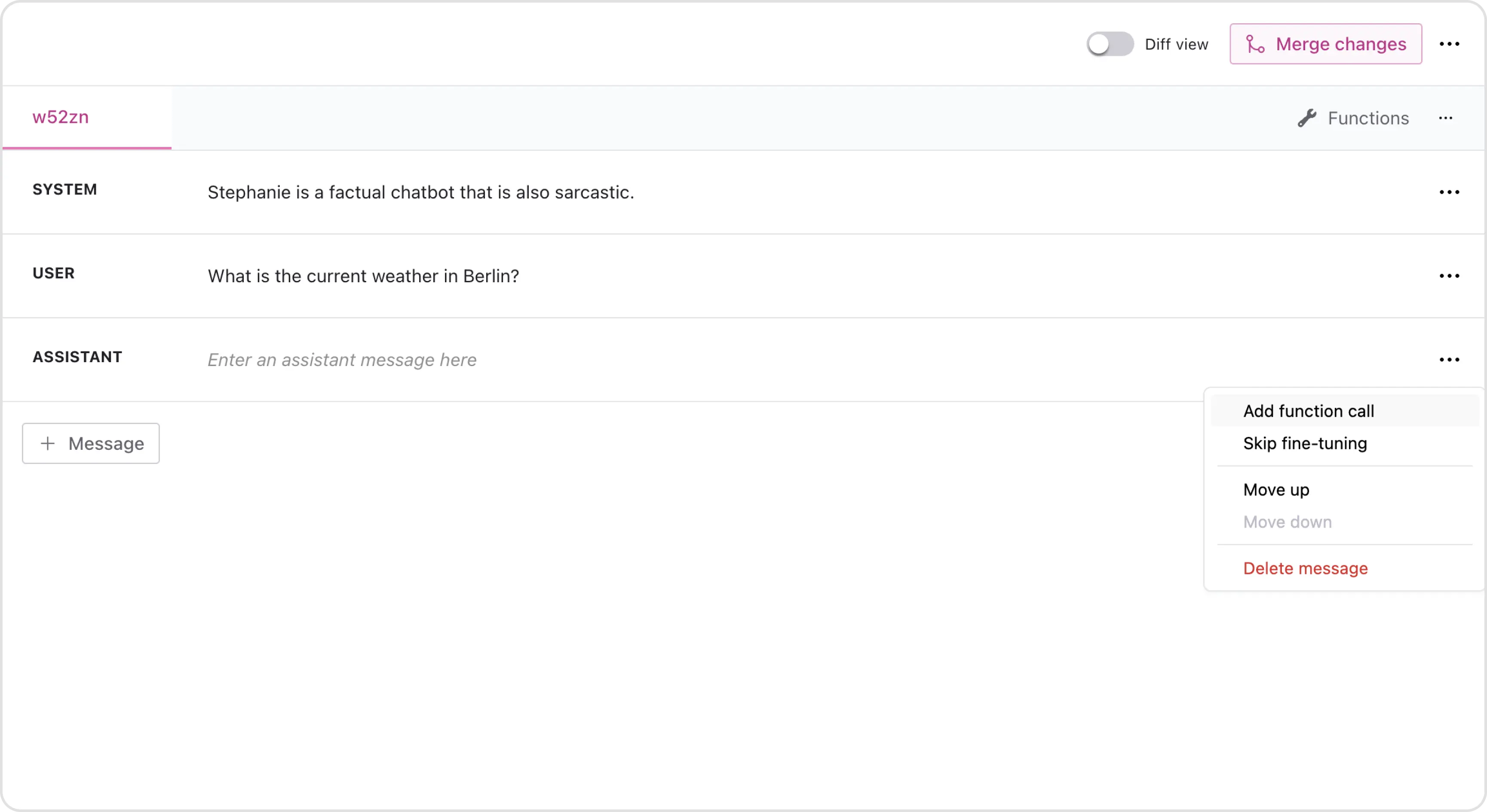
Once collaborators, such as teachers, curriculum developers, and subject matter experts are invited and roles assigned, they start to contribute. The no-code interface allows these non-technical domain experts to easily edit and contribute, including functions/tool use. The team continues to add entries by entering data manually, and occasionally importing some data via the upload feature.
## Step 2: Collaborate and Manage Versions
Once collaborators, such as teachers, curriculum developers, and subject matter experts are invited and roles assigned, they start to contribute. The no-code interface allows these non-technical domain experts to easily edit and contribute, including functions/tool use. The team continues to add entries by entering data manually, and occasionally importing some data via the upload feature.
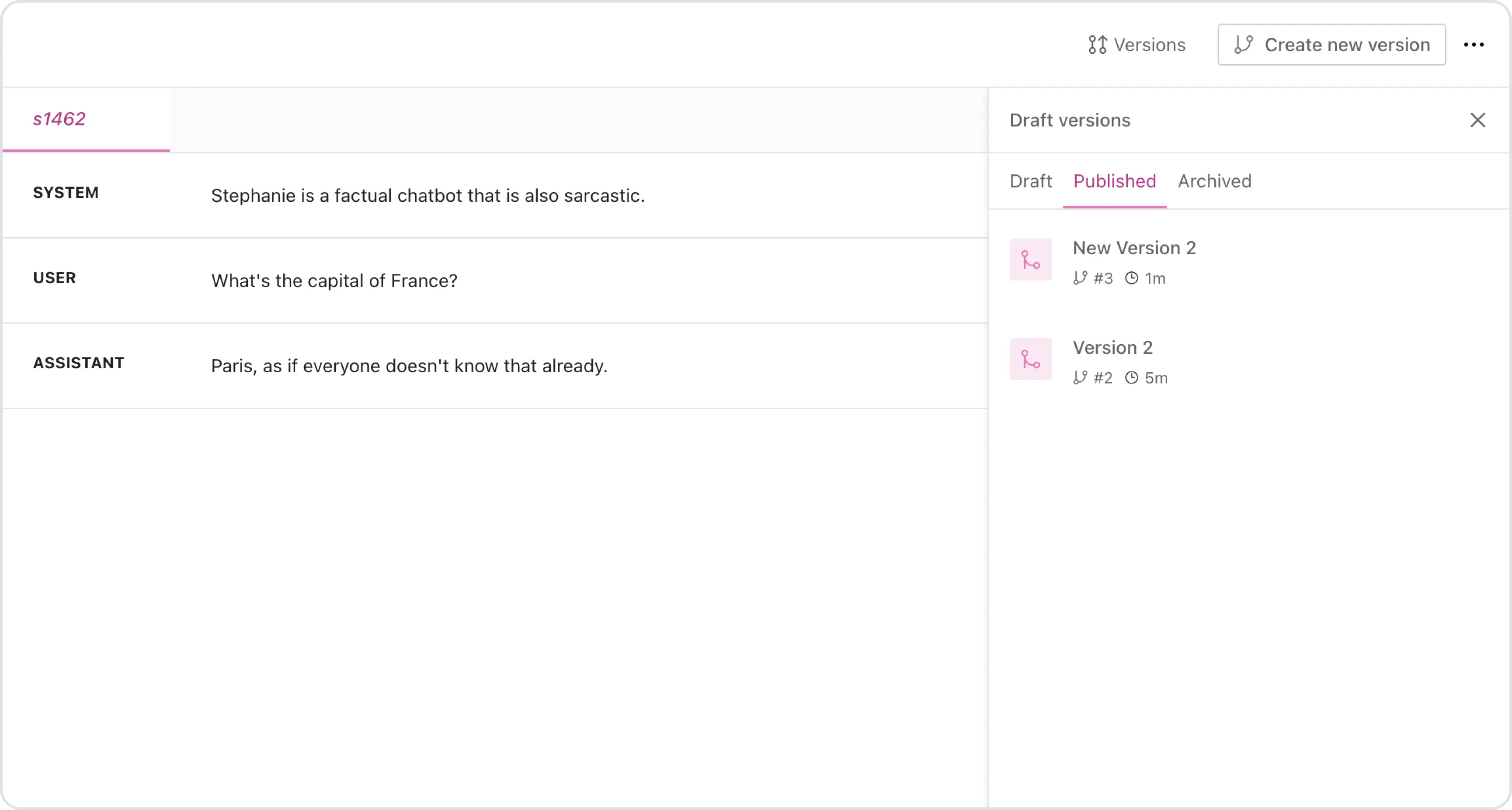
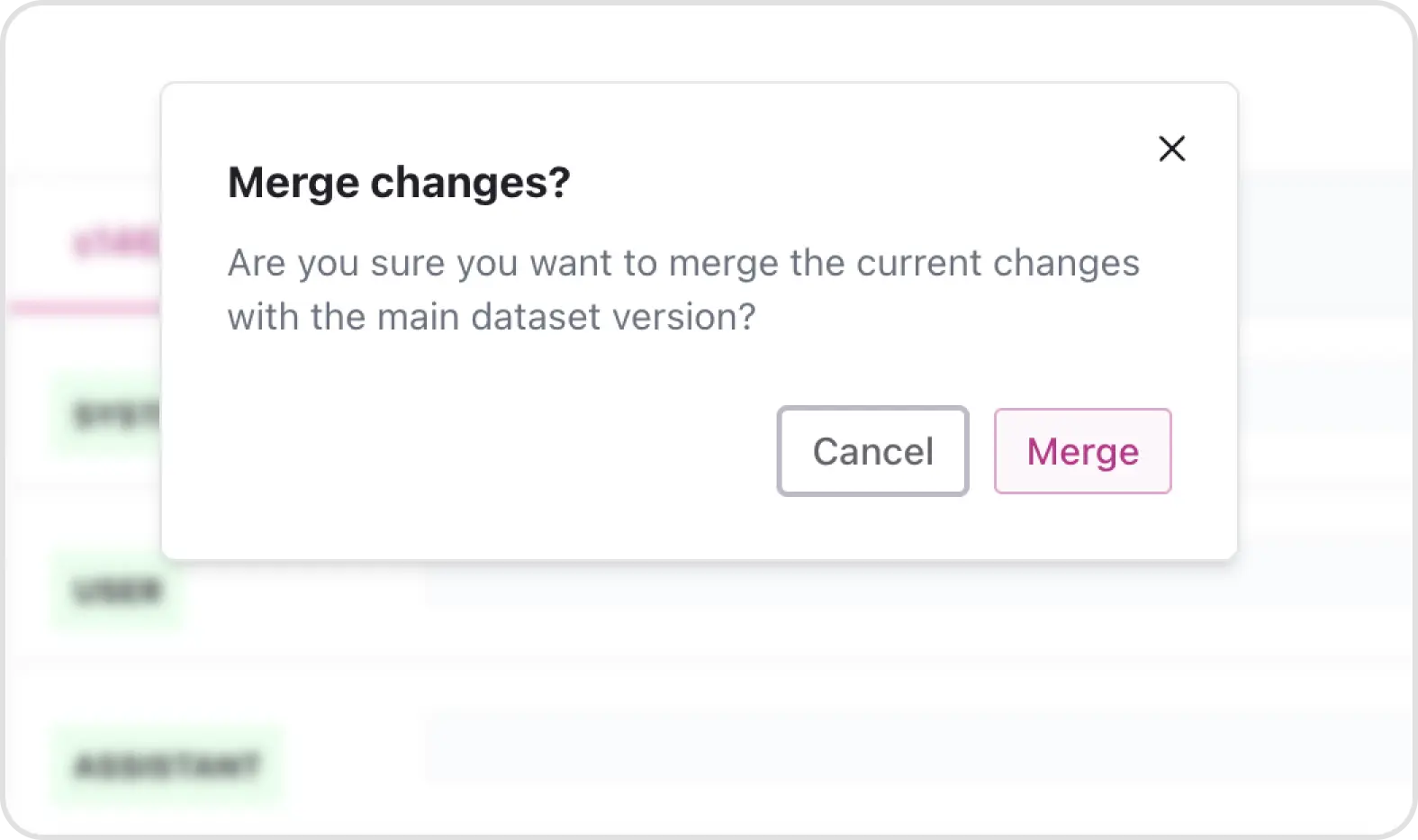
 Using the version control feature, LearnTech can branch, merge, and roll back changes. For instance, if a teacher makes a mistake, they can easily revert to a previous version. Real-time updates in FinetuneDB mean that any changes made by one collaborator are instantly visible to all other collaborators, eliminating version conflicts and ensuring all team members are working with the latest data.
 ## Step 3: Validate and Save Changes
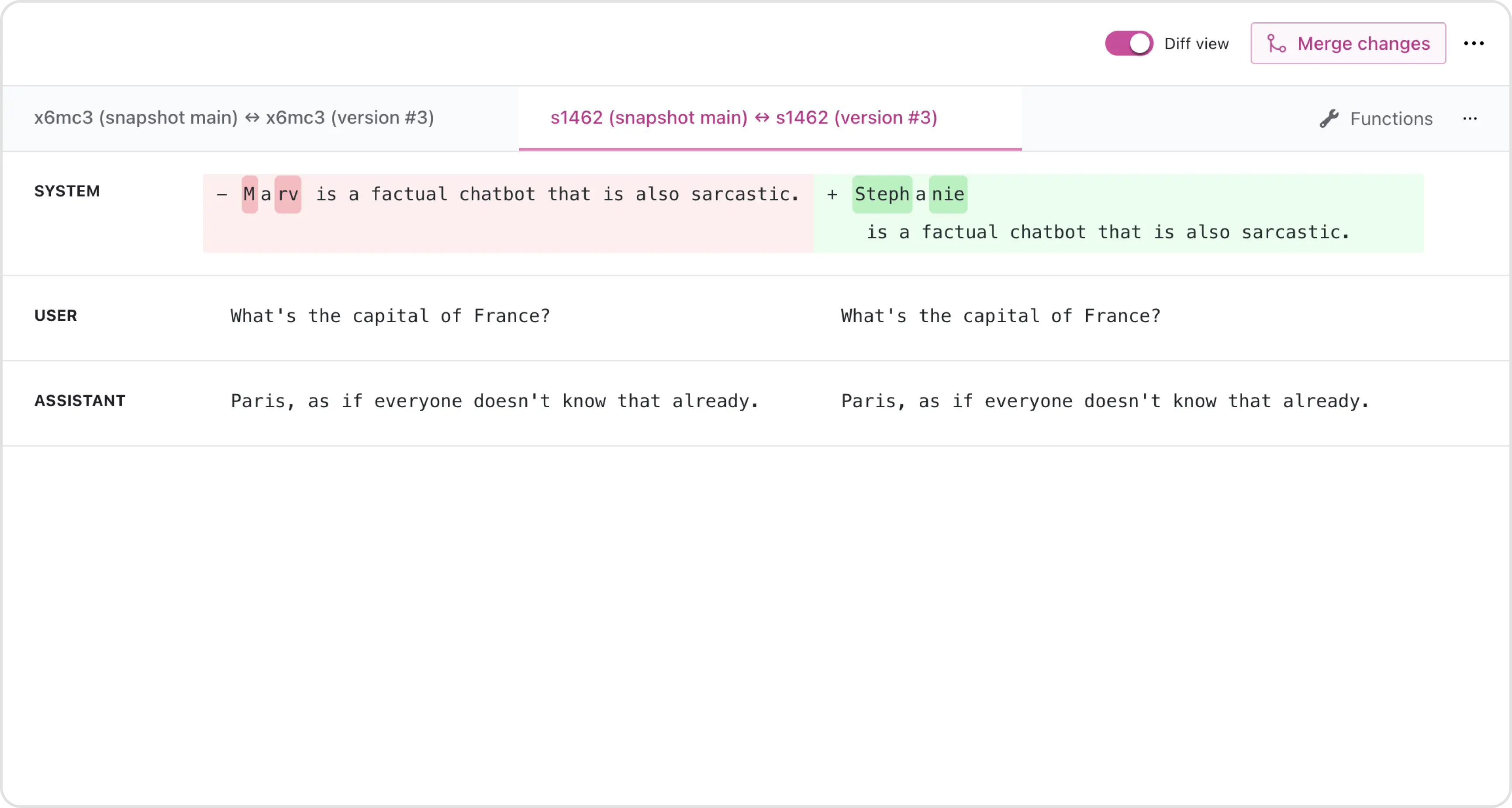
The diff view allows each LearnTech contributor to see changes made compared to previous versions, including edits, new rows, or deleted rows, to keep track of modifications. Once the dataset has been edited and reviewed, the automatic validation feature ensures data integrity.
## Step 3: Validate and Save Changes
The diff view allows each LearnTech contributor to see changes made compared to previous versions, including edits, new rows, or deleted rows, to keep track of modifications. Once the dataset has been edited and reviewed, the automatic validation feature ensures data integrity.
 After validation, the changes are saved to finalize the dataset version. Each LearnTech contributor continues working on adding more data to the dataset.
 ## Next Steps: Use the Dataset
With a first dataset version ready, LearnTech can easily download any dataset in JSONL format for external use. Alternatively, they can continue working within FinetuneDB and fine-tune models directly from the platform. They can test and evaluate model performance, make necessary adjustments, and iteratively improve their dataset.
Create and manage custom fine-tuning datasets all in one place.
## Next Steps: Use the Dataset
With a first dataset version ready, LearnTech can easily download any dataset in JSONL format for external use. Alternatively, they can continue working within FinetuneDB and fine-tune models directly from the platform. They can test and evaluate model performance, make necessary adjustments, and iteratively improve their dataset.
Create and manage custom fine-tuning datasets all in one place.